
Relationships define connections between tables in your data model. SqlDBM supports multiple relationship types to represent both physical database constraints and logical connections in your schema. SqlDBM allows users to diagram any kind of relationship and generate the related DDL where applicable.
Creating relationship
When creating a relationship, the Foreign Key (FK) popover dialog appears:
- Child table FK column(s) can be defined with the popover.
- Existing columns with matching data types can be selected or new columns with a data type that matches the parent table's primary key (PK) column can be created.
- Clicking outside the popover confirms the selection.
Figure 1. Creating relationships demo
Identifying vs. non-Identifying relationships
Identifying relationships
- The child table inherits the parent’s primary key (PK) in an identifying relationship.
- The inherited column(s) become part of the child’s primary key.
When creating an identifying relationship, the relevant parent column(s) are automatically created or moved into the child table’s PK section.
Figure 2. Identifying relationship on diagram
Non-identifying relationships
- In a non-identifying relationship, the child table receives the parent key column(s) as foreign keys (FKs) only.
- These FKs do not become part of the child’s primary key.
When creating a non-identifying relationship, parent column(s) are added to the child table, but only as FKs, not as part of the PK.
Figure 3. Non-identifying relationship on diagram
Relationship updates
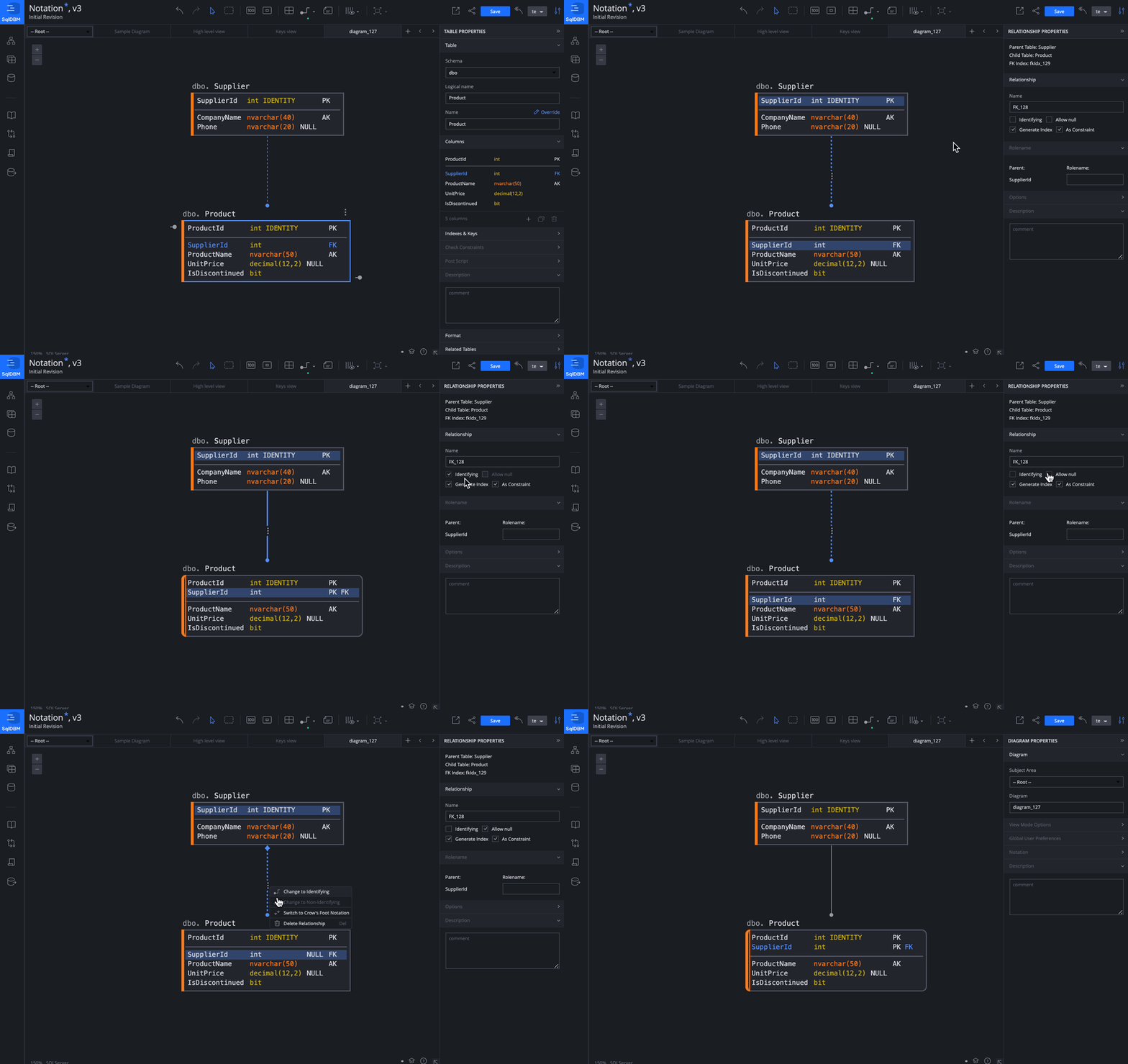
- If a PK column in an identifying relationship is moved to the non-PK section of the child table, the relationship changes to non-identifying.
- If the relationship type is changed from identifying to non-identifying via the Foreign Key property editor, the FK column is moved to the non-PK section of the child table.
Figure 4. Relationship updates on diagram
Relationships notation
SqlDBM allows using both IDEF1X and Crow's foot notation for physical and logical (virtual) relationships. To apply a notation style, go to the Notation section of the diagram properties in Diagram Explorer or call the context menu on any relationship.
Figure 5. Switch relationship notation on diagram
IDEF1X notation
By default, projects use IdeF1X notation.
Solid lines represent identifying relationships and dashed lines represent non-identifying relationships. In a non-identifying relationship, the foreign key field does not form a part of the parent table's primary key.
Null-able foreign keys can also be specified in the properties and are represented by a diamond next to the child table.
Figure 6. IdeF1X notation on diagram
 Crow’s foot notation
SqlDBM also supports Crow's foot notation so that users can track cardinality between tables.
In comparison with IDEF1X notation, relationships in Crow's foot notation always have solid lines.
Figure 7. Crow's foot notation on diagram
Relationship cardinality
The Cardinality setting is available in the Foreign Key property editor when Crow’s foot notation is active. Radiobuttons are used to set the property.
Figure 8. Cardinality section in FK PE
The following symbols are used to represent cardinality:
Ring : "zero"
Dash : "one"
Crow's foot : "many"
Child table
These symbols are used in pairs to represent the four types of cardinality that a child entity may have. The inner component of the notation represents the minimum, and the outer component represents the maximum.
Ring and Crow's Foot → minimum zero, maximum many (optional)
Ring → minimum zero, maximum one (optional)
Dash → minimum one, maximum one (mandatory)
Dash and Crow's foot → minimum one, maximum many (mandatory)
Figure 9. Child table cardinality options
By default, "From zero to many" is selected.
Parent table
Parent table may have two types of cardinality:
Ring → minimum zero, maximum one (optional)
Dash → minimum one, maximum one (mandatory)
Figure 10. Parent table cardinality options
Mark "Allow null" in relationship properties to represent "From zero to one" when "from one to one" is chosen. Notice, "Allow null" option is available for entities with PK columns only.
Figure 11. "Allow null" in FK PE
Different relationships in SqlDBM
Physical relationships
A physical relationship occurs when the primary key of one table is used as a foreign key of another. A foreign key constraint can then be created to establish the physical relationship.
Click on the parent table and drag the bottom-right knob to the child table. Or click on the child table and drag the upper-left knob to the parent table.
Figure 12. Create physical relationship
Note that any existing foreign key constraints will automatically be recognized and represented by SqlDBM through the "Reverse Engineer" feature.
Recursive relationship
Some tables can have an implicit relationship to themselves. For example, an employees table where both employee and manager IDs and relationships are stored. While there is no corresponding DDL to document this relationship, you can still show it on the project diagram.
To create a recursive relationship, drag the connector back to the table itself. See the video above for a demonstration of how to create and edit the associated columns.
Virtual relationships
For tables
SqlDBM is designed to automatically detect logical relationships (PK, FK) through table constraints. However, as Snowflake and other Data Warehouses do not enforce these types of constraints, some users omit to define them. Virtual Relationships enable users to define and visualize their table relationships within the SqlDBM tool without having to declare PK/FK constraints directly in the database.
Virtual relationships document logical connections without creating physical database constraints. SqlDBM now supports several types of virtual relationships:
Virtual Foreign Key (VFK) - Documents logical foreign key relationships without creating physical constraints
Virtual Primary Key (VPK) - Identifies columns that serve as primary keys logically but may not be enforced as constraints
Virtual Business Key (BK) - Documents natural keys and business identifiers that are semantically important for understanding your data model
Join - Models SQL join semantics (Left, Right, Inner, Full) to document query logic and data transformations.
Dependency - Documents data lineage between views, dynamic tables, CTAS-generated objects and their sources
Each relationship type has unique visual styling to help distinguish between physical and logical connections.
Create Virtual Relationship lines between tables (which will not affect DDLs like create FK) from the top-center menu. Select Virtual Identifying, Non-Identifying, Join or Dependency type of relationship ( SqlDBM remembers your selection for future use). Connect the source and target table just as with physical relationships.
Even after a virtual relationship is created, you can change the type of virtual relationship by selecting the relationship line and changing the radio button in the relationship type.
To identify the columns that form your virtual relationship, select the relationship and click the columns of the Virtual Relationship for both parent and child tables from the right panel menu.
All virtual relationships now support paired column definitions, allowing you to specify exact column mappings just like physical foreign keys. Newly created relationships show the paired column by default, and can be changed by clicking on the Paired columns checkbox, to define unmatched columns in Parent and Child tables.
Each relationship type displays with distinct visual styling:
- Identifying physical FK - Solid line
- Non-identifying physical FK - dashed line
- Virtual Identifying - green long dashed line
- Virtual non-identifying - orange dashed line
- Join - dotted line with brackets that indicate the type of join
- Dependency - vertically dashed line showing direction.
The color can be changed in the color properties in the right panel menu of the relationship. (SqlDBM remembers your selection for future use if configured for a newly created relationship).
For extra context, you can also provide a description of the virtual relationship in the right panel menu.
Figure 13. Virtual relationship
Relationship visualization in the diagram can be customized in the Diagram properties, where the user can choose which relationships to show from the View mode options
For views, functions, and procedures
Views, Functions, and Procedures can be connected/related to other objects on a diagram using virtual relationships.
To do this, select a virtual relationship type from the top menu of the diagram, then click and drag from a source object to the target object.
Virtual connections can be made between any objects on the diagram (views, tables, functions, or procedures).
Figure 14. Functions and procedures relationships
Control relationship lines
Relationship lines are customizable in SqlDBM diagrams. Users can bend relationship lines at any point and set their shape permanently on the diagram. This functionality provides complete control over diagram design and ensures that relationships are properly situated for clearer separation and understanding.
A demonstration of how to bend a relationship line around a fixed point is included in the following video:
Figure 15. Relationships bend
RELY property (Snowflake)
Snowflake constraints (PK, FK, AK) now support RELY in Reverse/Forward Engineering and object properties. The RELY property is a keyword included in the constraint definition and acts as a hint for the Snowflake optimizer to rely on the integrity of the constraint and perform join elimination on views and redundant queries.
Set or unset RELY by clicking on any constraint from the Keys section of the table properties and selecting the RELY option.
Figure 16. Rely FK property in Snowflake
For FKs, clicking on the relationship line will bring up this menu directly.